Tips & Tricks
This page provides various tips, optimizations, and workarounds to help you get the most out of spm4Kmp.
Importing Swift Code into Kotlin
If you're looking for practical examples of how to bridge Swift and Kotlin, check out the dedicated playground repository.
Playground Repository
A playground demonstrating various Swift-Kotlin interoperability use cases is available.
The repository is regularly updated with new examples. Feedback and requests for specific use cases are always welcome!
Optimizing Build Performance
Reduce Build Time
By default, Swift Package Manager (SPM) working files are stored within the Gradle build folder. You can change this behavior using the spmWorkingPath property.
Pro Tip: Detach Working Path
Setting spmWorkingPath outside the build folder prevents working files from being deleted during a ./gradlew clean. Additionally, you should exclude this folder from IDE indexing to improve responsiveness.
Example configuration in your build.gradle.kts:
CI/CD Caching
To speed up your CI/CD pipelines, ensure you cache the SPM working directory:
- The default directory: build/spmKmpPlugin
- Or your custom spmWorkingPath if set.
GitHub Actions
Check the pre-merge workflow for a real-world example of building with cached SPM files.
Implementing Firebase
Integrating Firebase into a KMP project can be complex. We provide a complete reference implementation to guide you.
Firebase Example
View the Full Firebase KMP Demo for a step-by-step implementation.
Handling Objective-C Types (_objcnames.classes_)
When working with Objective-C types (like UIView, UIViewController, etc.), cinterop might occasionally need a "hint" to correctly map the types.
Example Solution
If cinterop fails to recognize a specific type, you can force its inclusion by creating a dummy Swift class or using NSObject as a bridge.
import UIKit

// Option 1: Force cinterop to include `platform.UIKit.UIView` via a dummy class
@objcMembers public class MyDummyView: UIView {}

// Option 2: Use inheritance or explicit NSObject mapping
@objcMembers public class TestClass: NSObject {

    // Simply returning `UIView` may not always be enough for cinterop
    public func getView() -> UIView {
        return UIView()
    }

    // Using NSObject can sometimes be more reliable for mapping
    public func getViewWithNSObject() -> NSObject {
        return UIView()
    }
}
import platform.UIKit.UIView

// In your Kotlin code:
fun getView(): UIView = TestClass().getView()

// Or with explicit casting if using the NSObject approach:
fun getViewCasted(): UIView = TestClass().getViewWithNSObject() as UIView
Custom Swift Versions & Toolchains
Experimental
This feature is experimental and may not cover all use cases. Please report any issues you encounter.
The plugin uses the system Swift command directly. If you need to support older Xcode versions or specific Swift toolchains, you can customize the binary path.
Using swiftly
We recommend using swiftly to manage multiple Swift versions on macOS.
- Install the desired Swift version via
swiftly. - Set the
swiftBinPathin your configuration:
Swift Concurrency in iOS Tests
If your bridge uses async/await and you encounter errors during KMP tests (e.g., Library not loaded: libswift_Concurrency.dylib), it's likely due to the minimum deployment target.
The Problem
Kotlin Multiplatform tests often default to a low minimum target (e.g., iOS 12/14), while Swift Concurrency requires iOS 15.0+.
The Fix
Override the minimum OS version for your test binaries:
kotlin {
    iosSimulatorArm64().binaries.getTest("debug").apply {
        freeCompilerArgs += listOf(
            "-Xoverride-konan-properties=osVersionMin.ios_simulator_arm64=16.0",
        )
    }
}
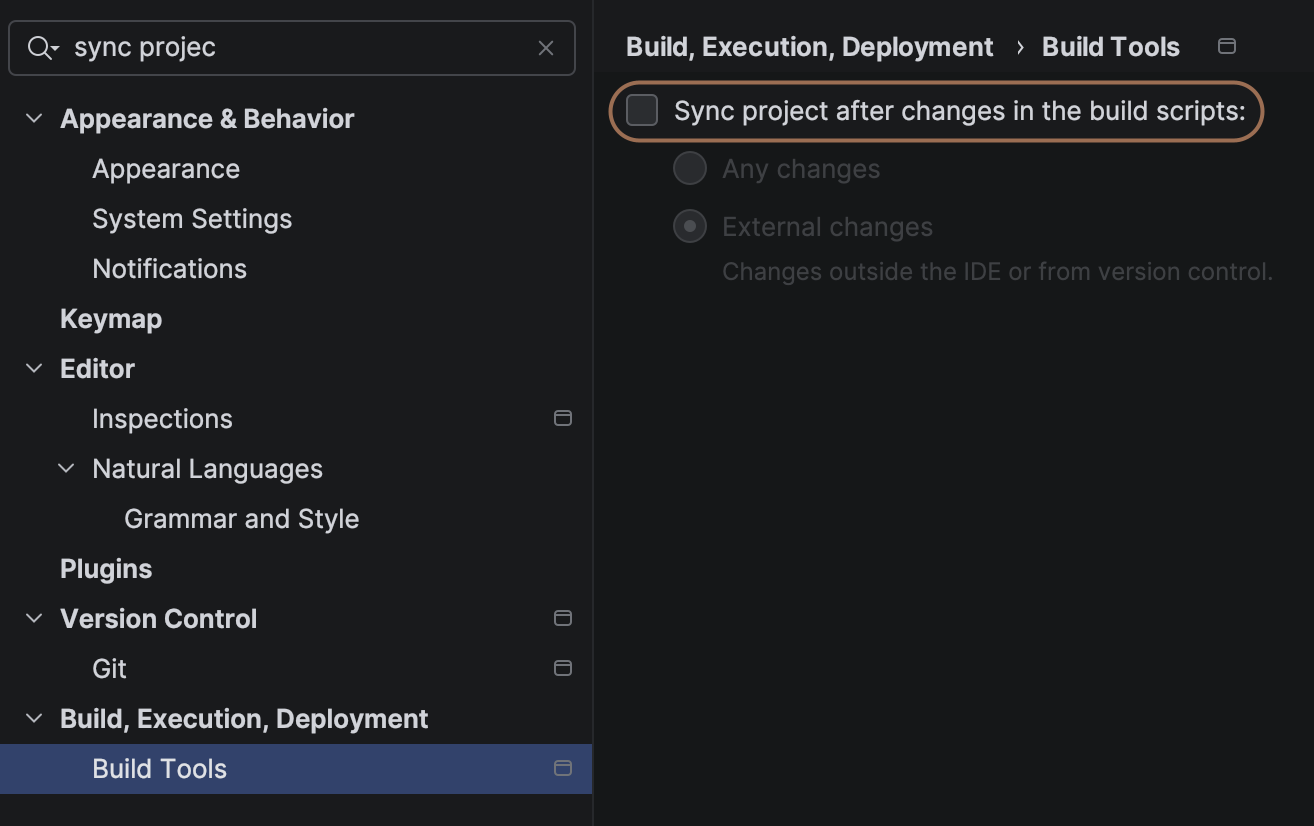
Disabling Automatic IDE Package Resolution
If your project contains a Package.swift manifest, IntelliJ/Android Studio might attempt to resolve it automatically. This can slow down the IDE and consume unnecessary disk space.
Recommendation
Disable the setting: Sync Project after changes in the build script in IDE Settings.
After disabling this, you can safely reclaim disk space by deleting:
~/Library/Caches/JetBrains/IntelliJIdea[Version]/DerivedData
Enabling Execution Tracing
To debug performance or execution flow, you can enable detailed tracing.
- Add the following flag to your
gradle.properties: - Find the generated traces in the
spmForKmpTracedirectory.